Introduction
Note: This guide assumes you have basic knowledge of networking and remote access concepts.
This will be a detailed walkthrough on how to set up remote access License Free on remote computers. At it needs is 2 software installations: one for remote access and another one for setting up a virtual network communication between the managed computers. Its meant to replace the headache of asking the remote user to give you the id number and password or even paying for easy access.
Tailscale as a magic ethernet cable that securely connects all your devices together, no matter where they are in the world. While it's not strictly "computer management" software in the sense of updating apps or monitoring CPU usage (like Microsoft Endpoint Manager or Jamf), it is a network management tool that makes managing your computers infinitely easier. Technically speaking, Tailscale is a "zero-config, zero-trust mesh VPN" built on top of the WireGuard protocol.
Rustdesk is a free and open-source remote desktop software that allows you to control another computer remotely.
Prerequisites
List anything the reader needs before starting:
- Any type of OS,
- Internet access,
- 4+ CPU cores,
- 8+ GB RAM.
Video Walkthrough
Step 1 — Installation
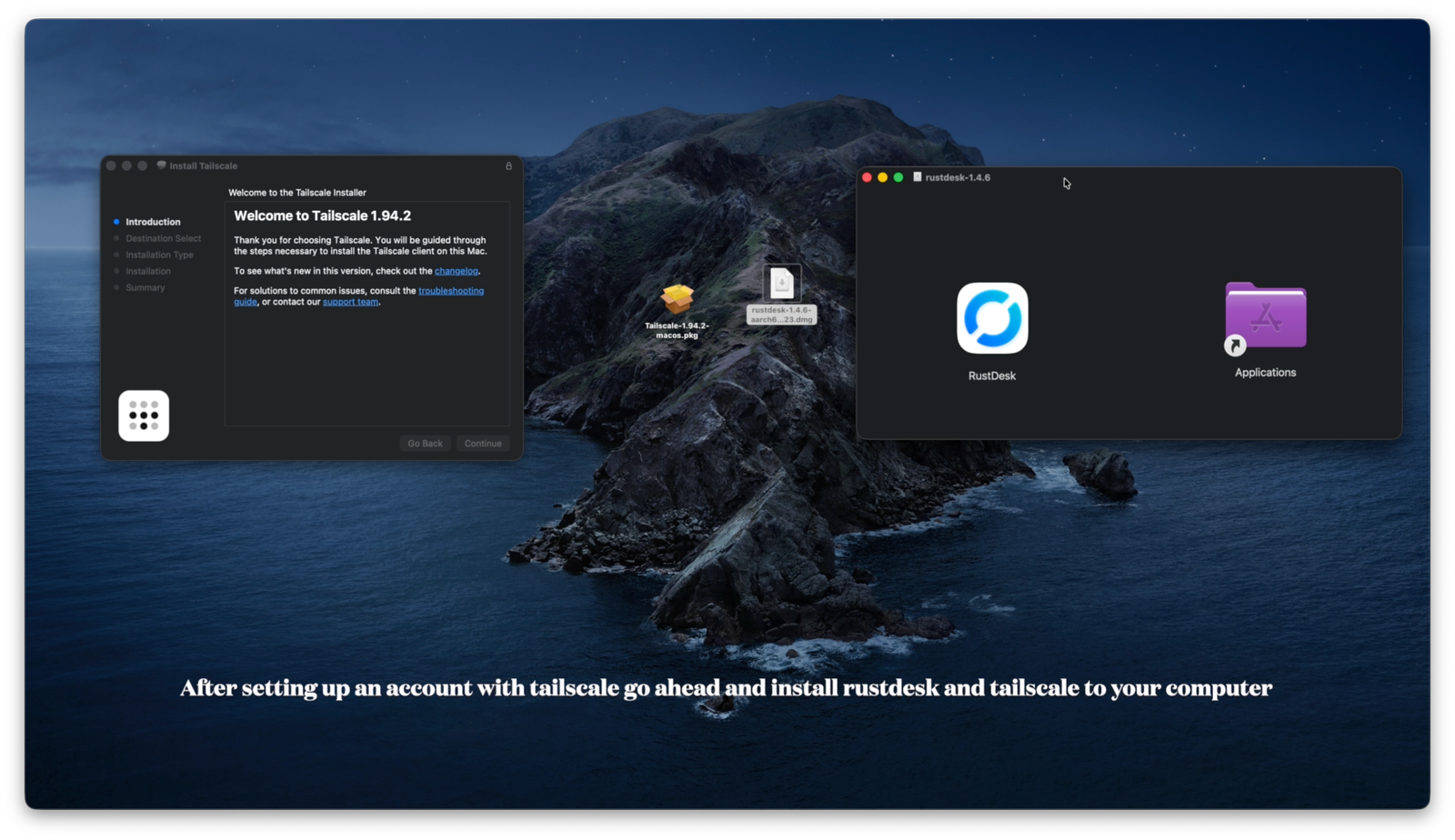
Download and install Tailscale and Rustdesk.
Download and install Tailscale and Rustdesk software by going to their website manually or click on the highlited ares of this text.
Step 2 — Tailscale Setup
Open free account with tailscale
After installing Tailscale you need to create an account from the tailscale website which will direct you to the admin console which its going to be blank because you need to log in to the tailscale app on your computer and link it to your account, then you will see your computer on the admin console and you can start managing and viewing the virtual IP Address of each device.
your-command --goes-here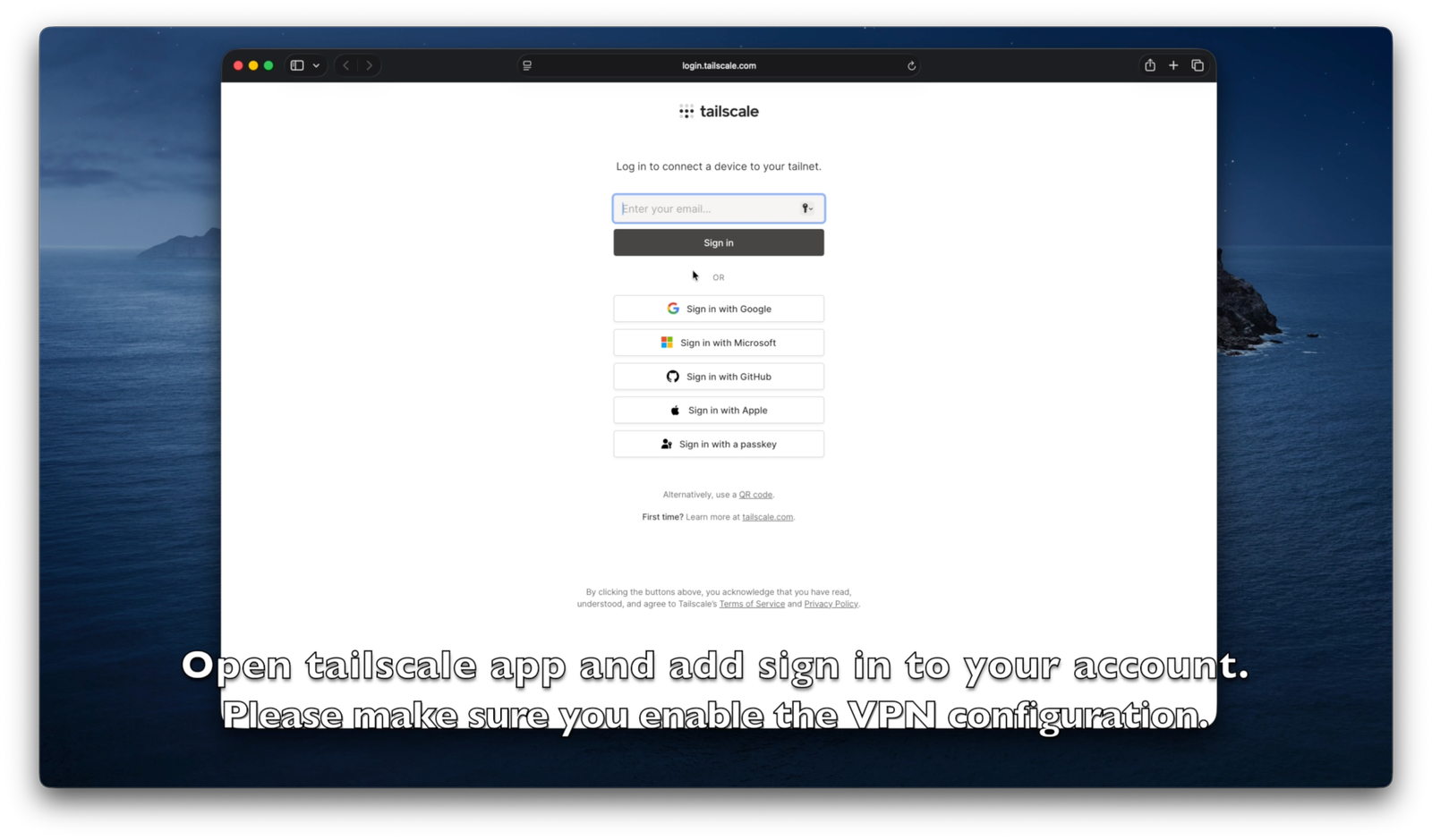
Step 3 — Rustdesk Configuration
Prepare your Rustdesk settings for remote access.
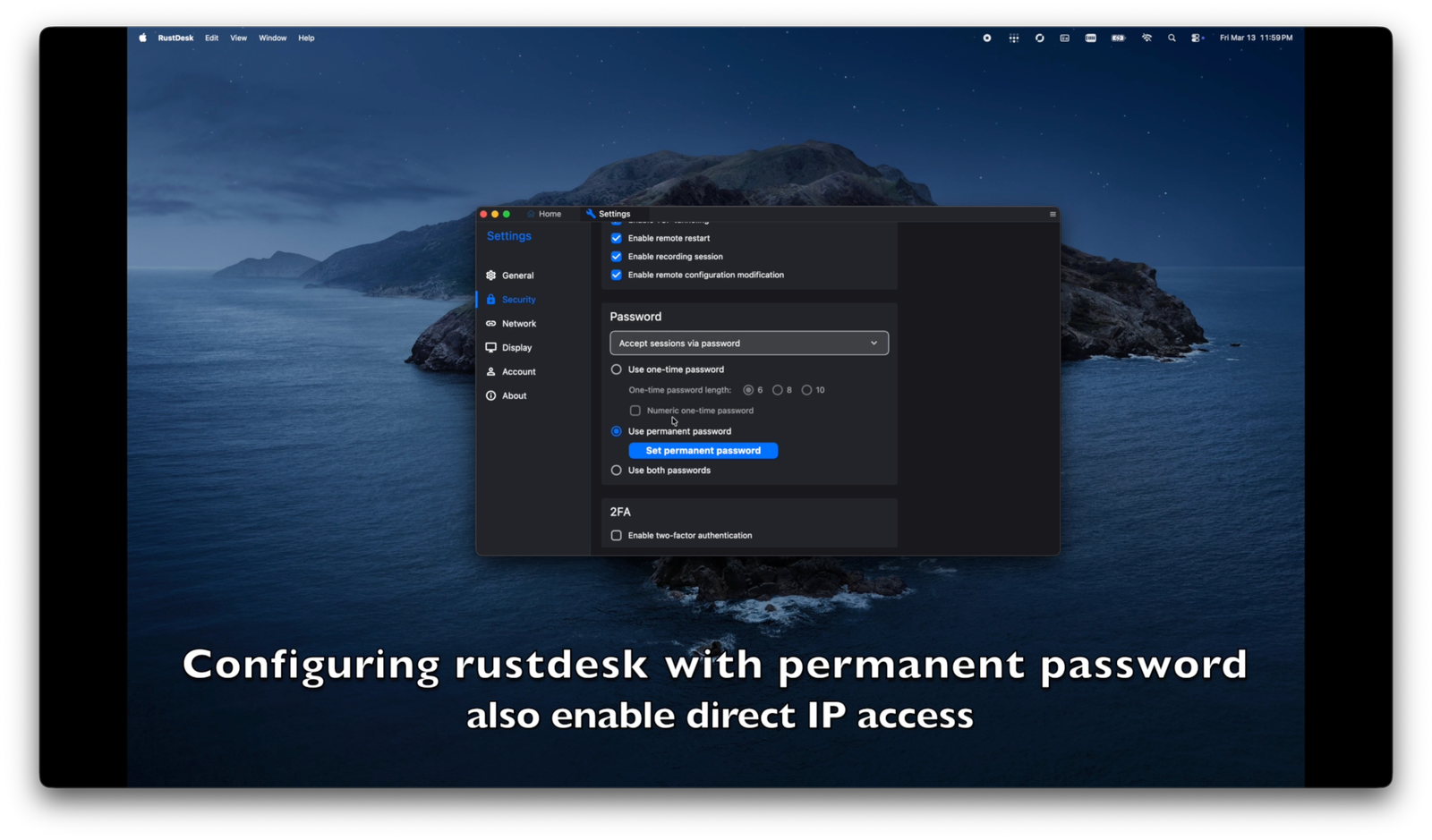
Open Rustdesk and configure the settings for remote access by going to Security tab and selecting "Accept sessions via password", select "Use permanent password" then you can go ahead and make up a password. This is important because everytime you try to remote in it will ask you for the password and you need to remember it. Also last but not least on the same Security tam scroll down and enable Enable IP access.
note: If you have issues with the firewall blocking the connection you might want to add an exception for Rustdesk connection port right under "Enable direst IP access".
Step 4 — Test Remote Connection
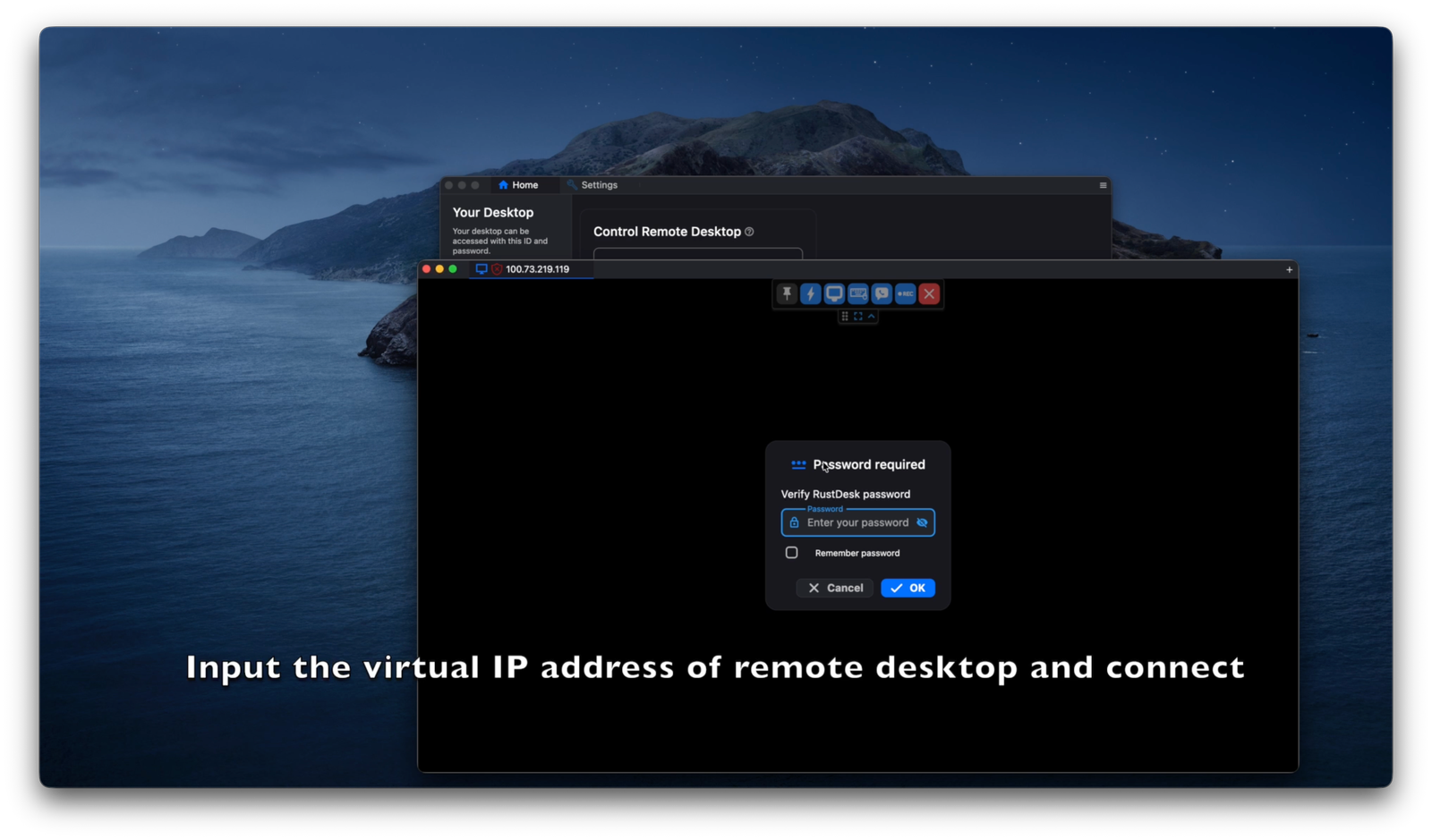
After you have completed step 1, 2 and 3 on your computer apply the same steps on the remote computer and make sure the Tailscale and Rustdesk app are runing at startup. Go back to tailscale admin console, copy the ip address of the remote computer and paste it on the Rustdesk "Remote Host" field then click on "Connect" and enter the password you have set up in step 3 and you should be able to remote in without any issues.
Conclusion
In this guide, you have learned how to set up and configure Rustdesk for remote access. You now have the knowledge to connect to remote computers securely and efficiently. I recommend exploring Tailscale's admin console since it offers some great features. With this setup, you can easily access and manage remote computers without the need for paid remote access software. Happy remoting!